DSP User Manual
Use this manual if you manage vehicles for a delivery service provider (DSP). It covers the work from the first inspection or vehicle report through repair and return.
New to Nova Fora?
Section titled “New to Nova Fora?”Start with New DSP Training. It walks through your first shift with examples and screenshots. Then use the detailed instructions below whenever you need help with a particular task.
Contents
Section titled “Contents”- Set up a DSP
- Start work and use Home
- Manage fleet vehicles
- Inspect vehicles and manage defects
- Body Repair for DSPs: request through return
- Manage vehicle custody
- Manage mechanical repairs
- Use notifications and DSP digests
- Use DSP reports
- Manage your account
- Solve common problems
Manage Body Repair
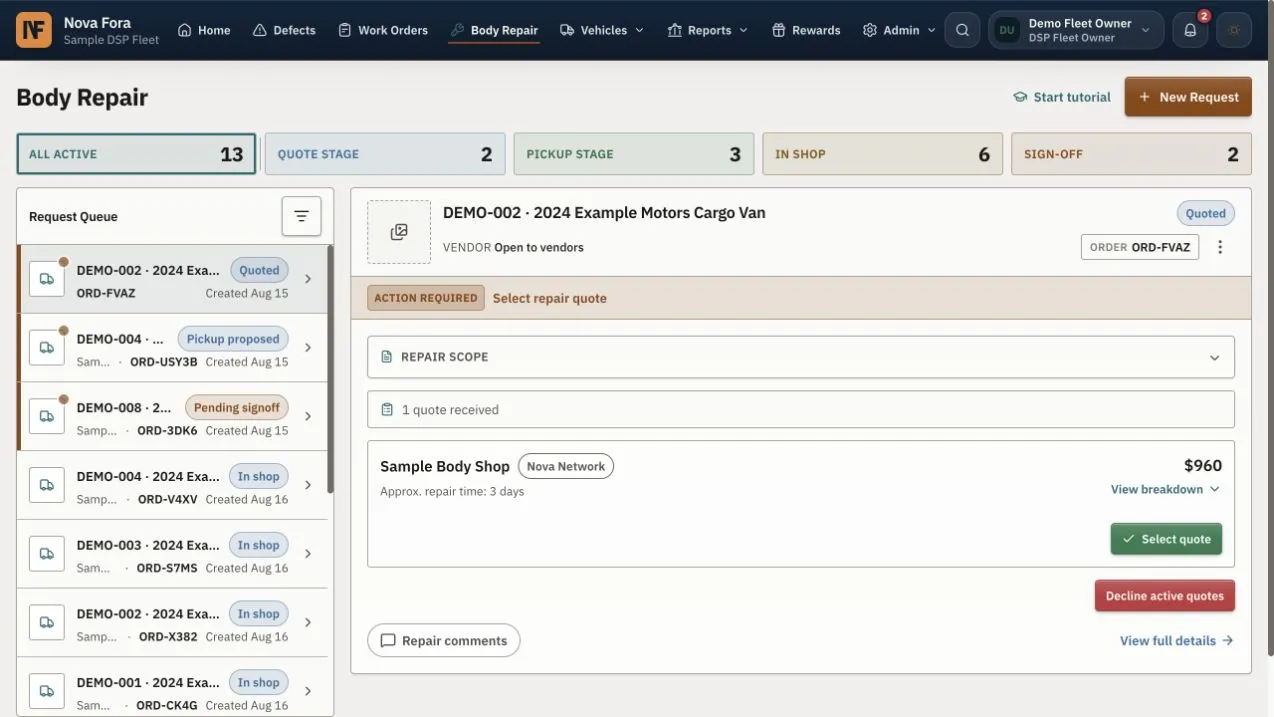
Section titled “Manage Body Repair”Start with Body Repair for DSPs, the main repair walkthrough for fleet teams. It explains how to define the work, compare quotes, handle added damage or cost, review the finished result, pay, and receive the vehicle.
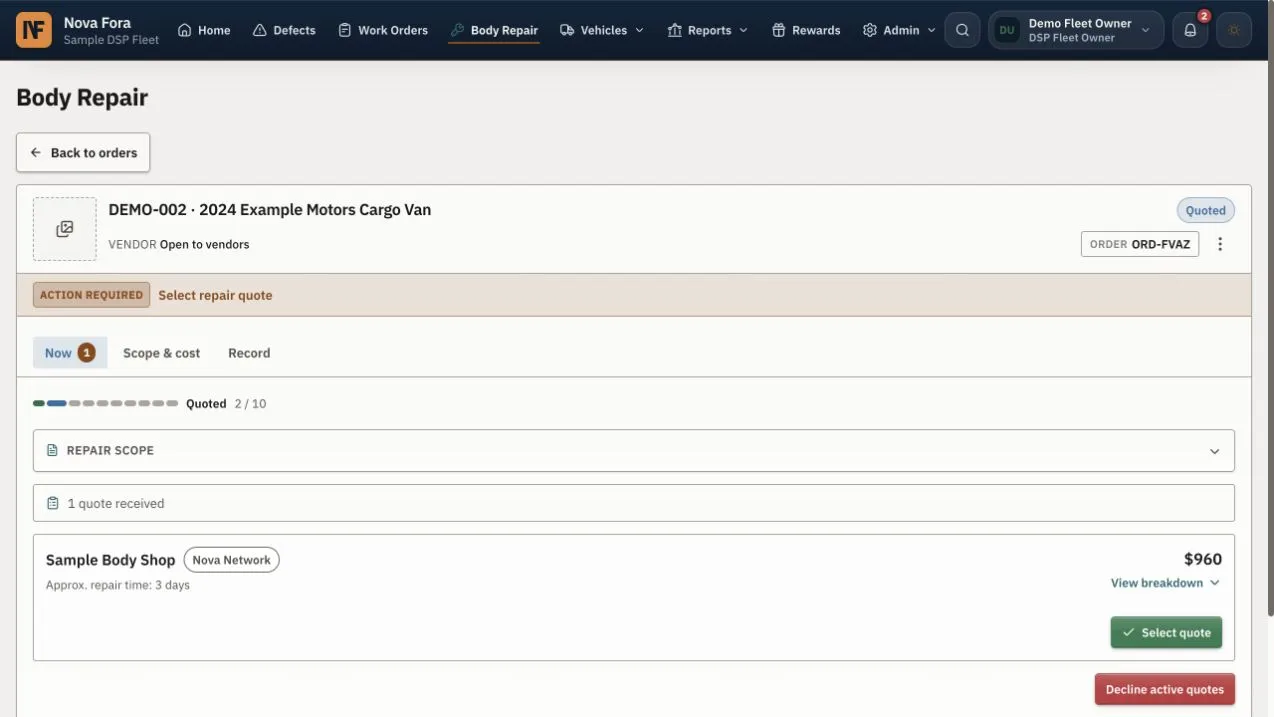
Open Body Repair to create a damage request, review quotes, confirm pickup, monitor the repair, approve or reject the finished report, follow payment status, and confirm return. Read Action Required on the request before you choose an action.
Start Your Day
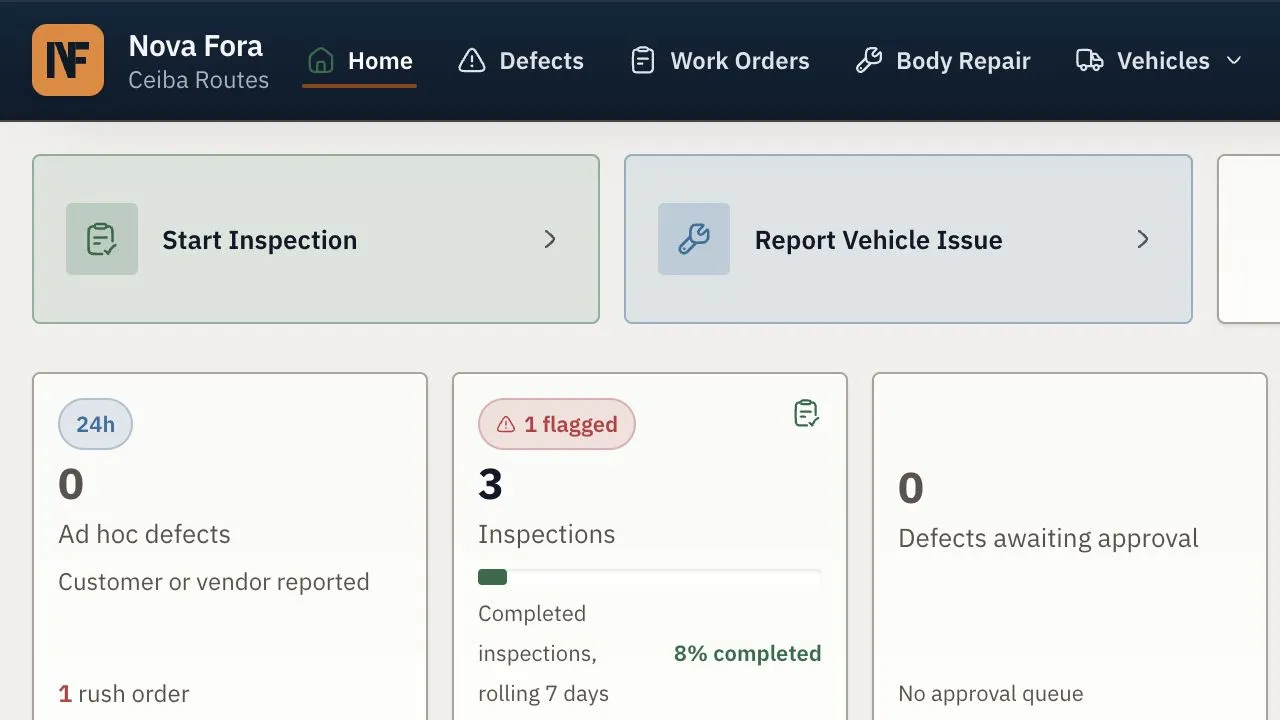
Section titled “Start Your Day”Open Home. Review urgent work before routine work. Check grounded vehicles, critical defects, overdue inspections, shop requests, pickups, returned vehicles, and pending feedback. Open an item to confirm its current status before you act.
Manage the Fleet
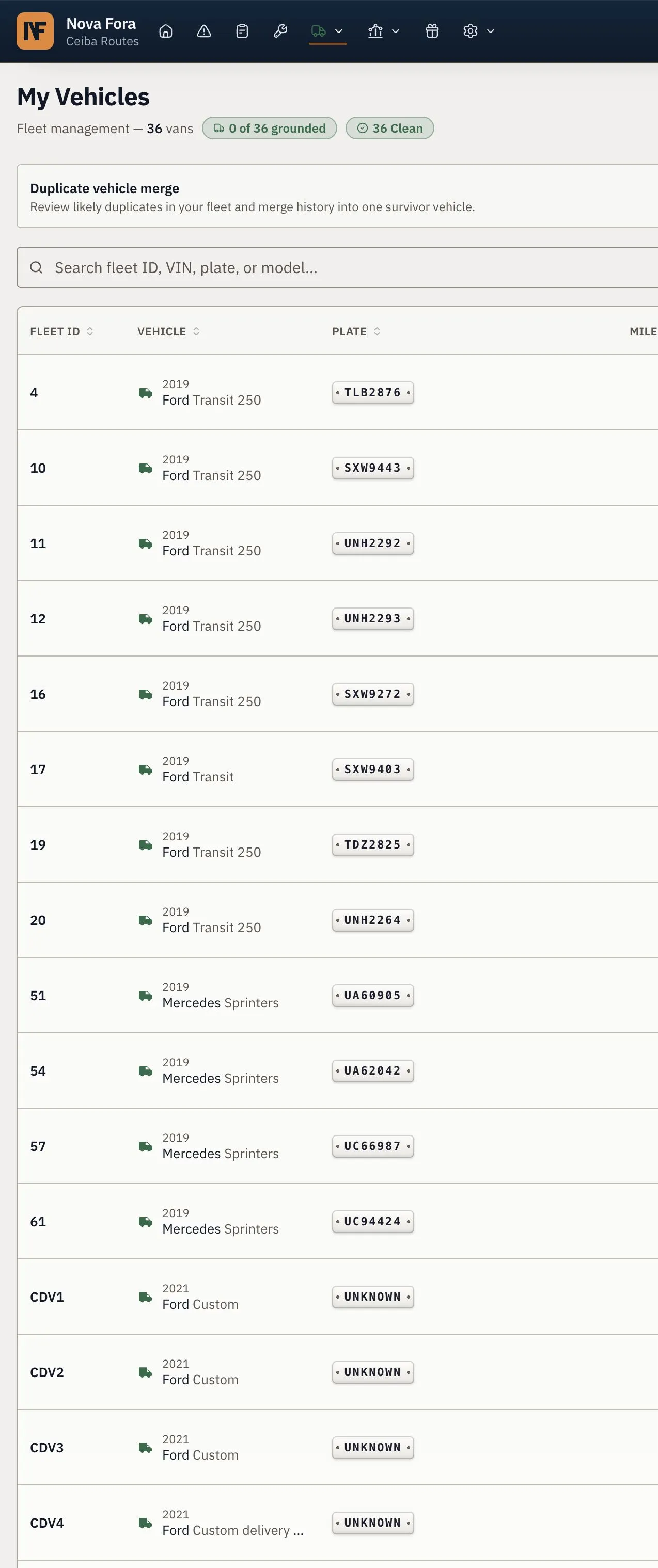
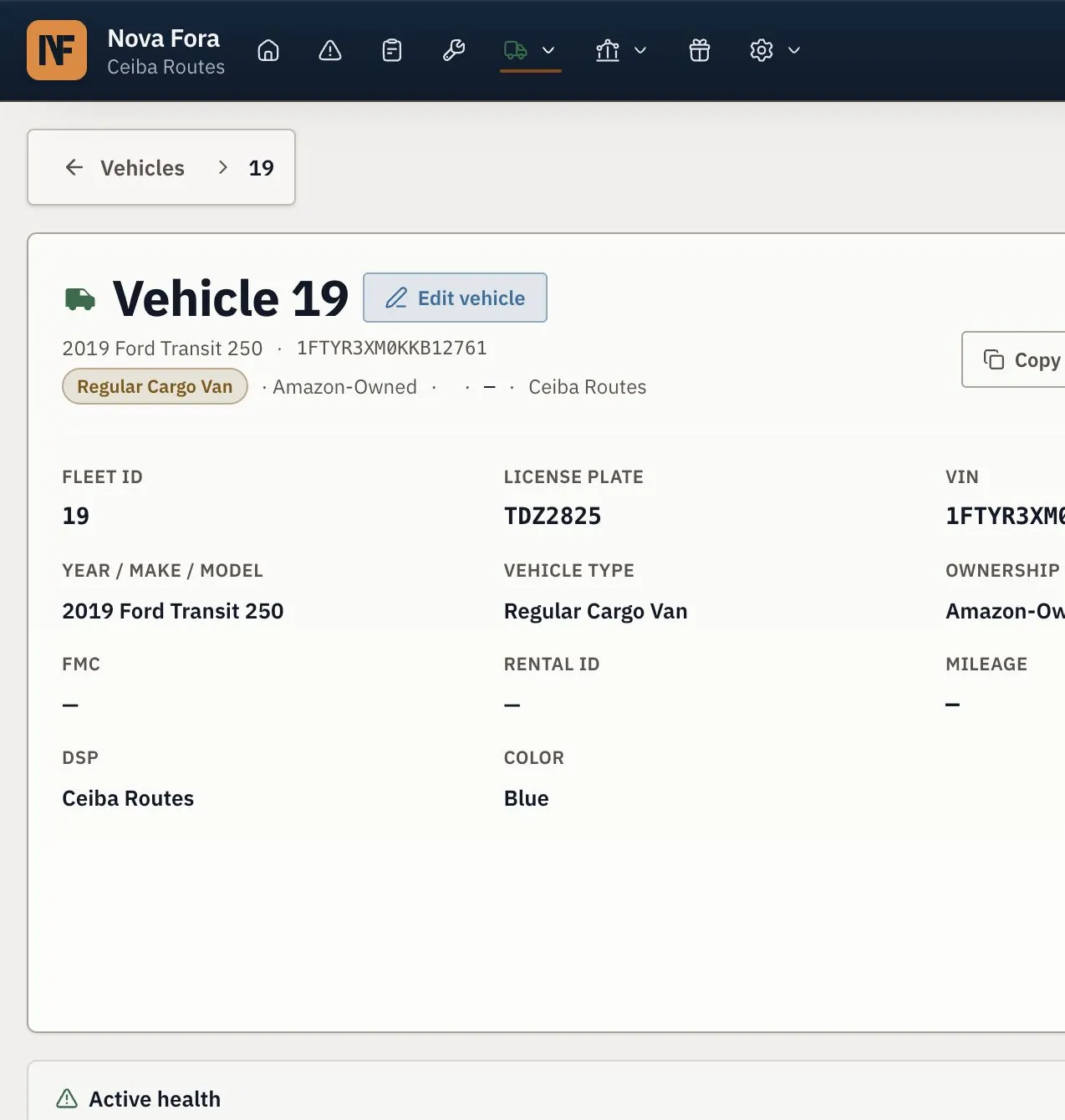
Section titled “Manage the Fleet”Open Vehicles to search by fleet number, plate, make, model, or vehicle identification number. Open a vehicle to review its location, operating status, defects, repair work, inspections, and custody history. Use export or bulk actions only when your role permits them.
Inspect and Report Problems
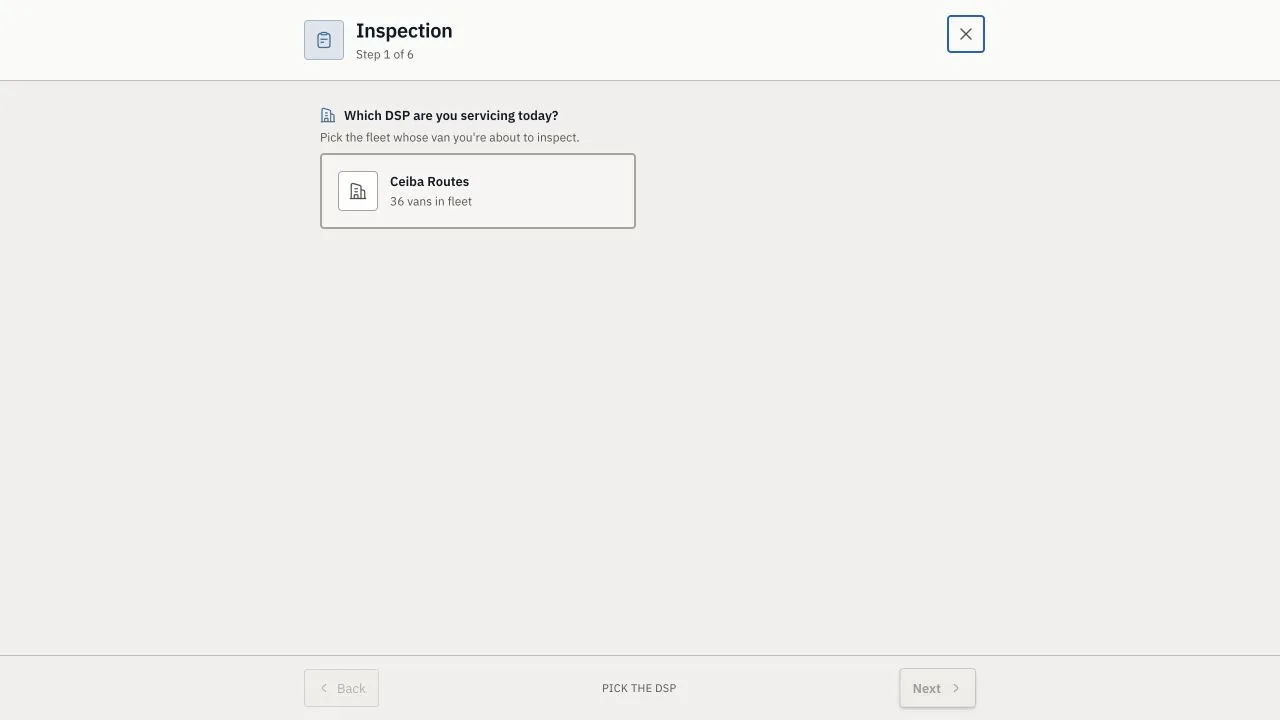
Section titled “Inspect and Report Problems”Select Start Inspection for a planned checklist. Confirm the vehicle before you continue. Record the current mileage, answer every item, and add a clear note and photo for each failed item.
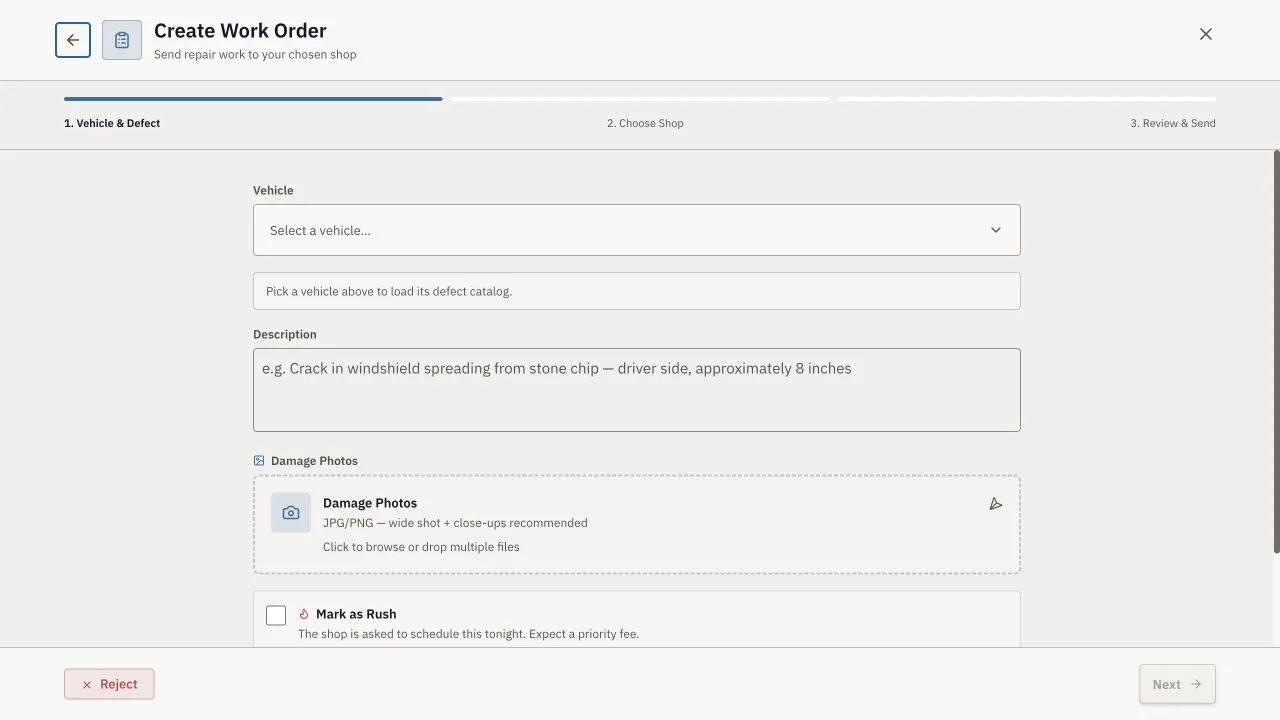
Use Report Vehicle Issue when a problem is found outside an inspection. Select the vehicle and affected area. Describe what happened, where the problem is, and whether it affects safe operation. Add useful photos, review the report, and send it once.
Track Defects and Repairs
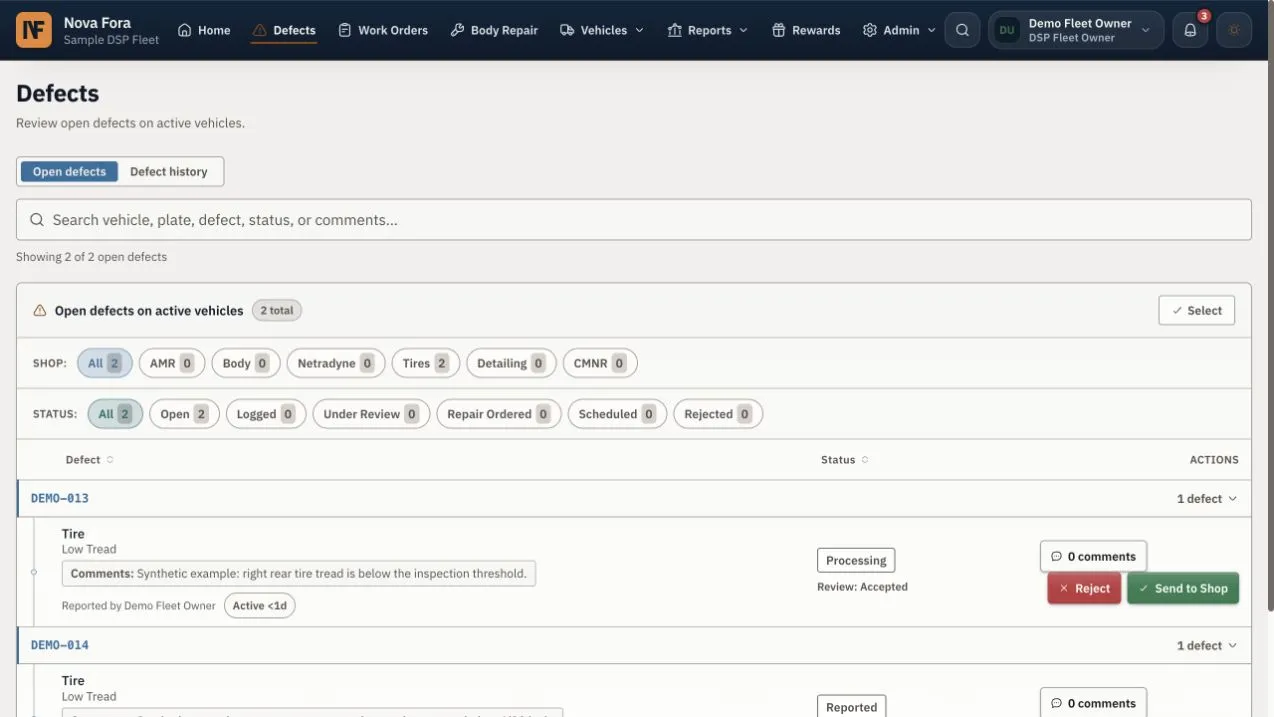
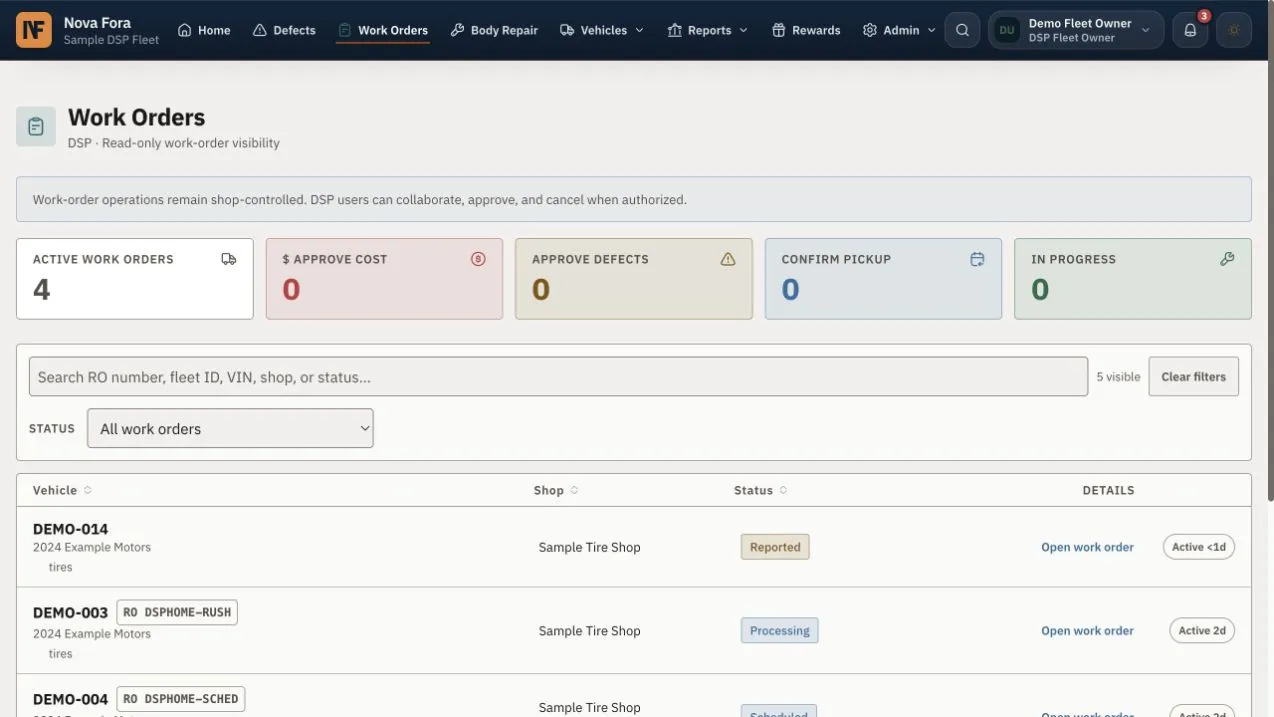
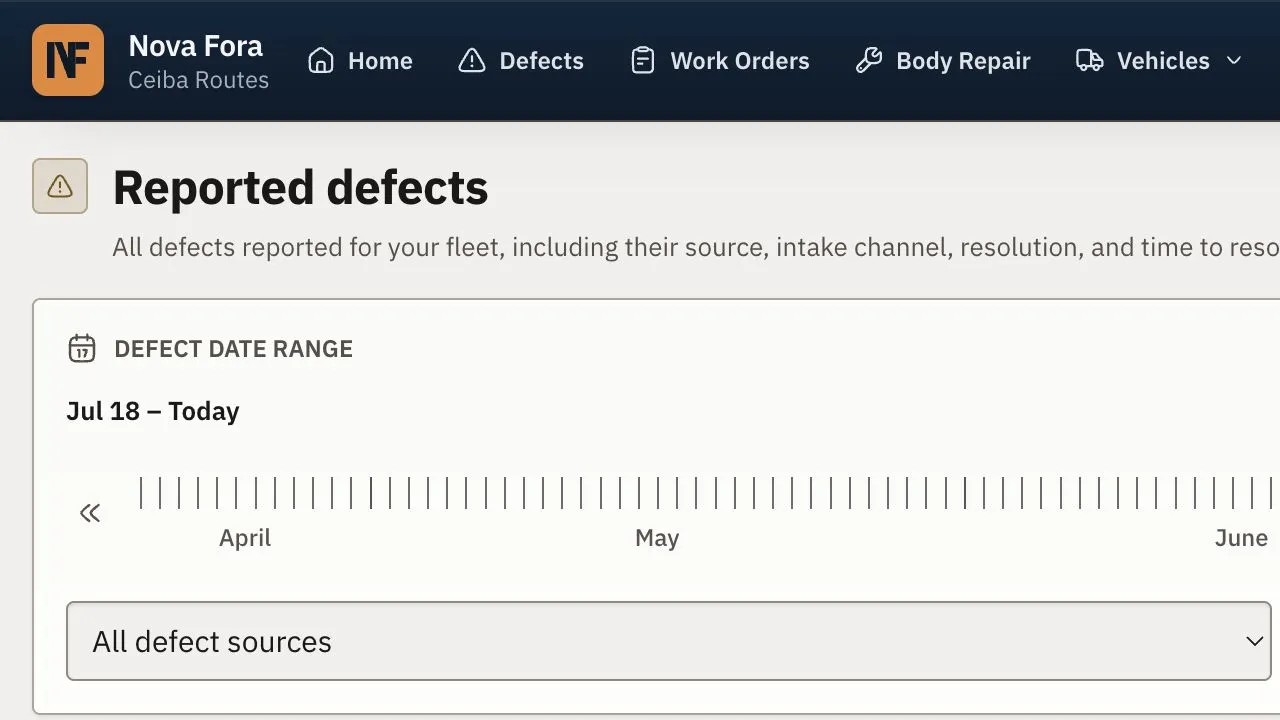
Section titled “Track Defects and Repairs”Use Defects to review reported problems and their decisions. Open the related repair to see the shop, schedule, status, notes, approvals, and next action. Do not act from an old notification without opening the current record.
Manage Vehicle Custody
Section titled “Manage Vehicle Custody”Open the checked-out vehicle list to see which shop has each vehicle, who recorded the handoff, the mileage, and the handoff time. Open the vehicle before you mark it available again.
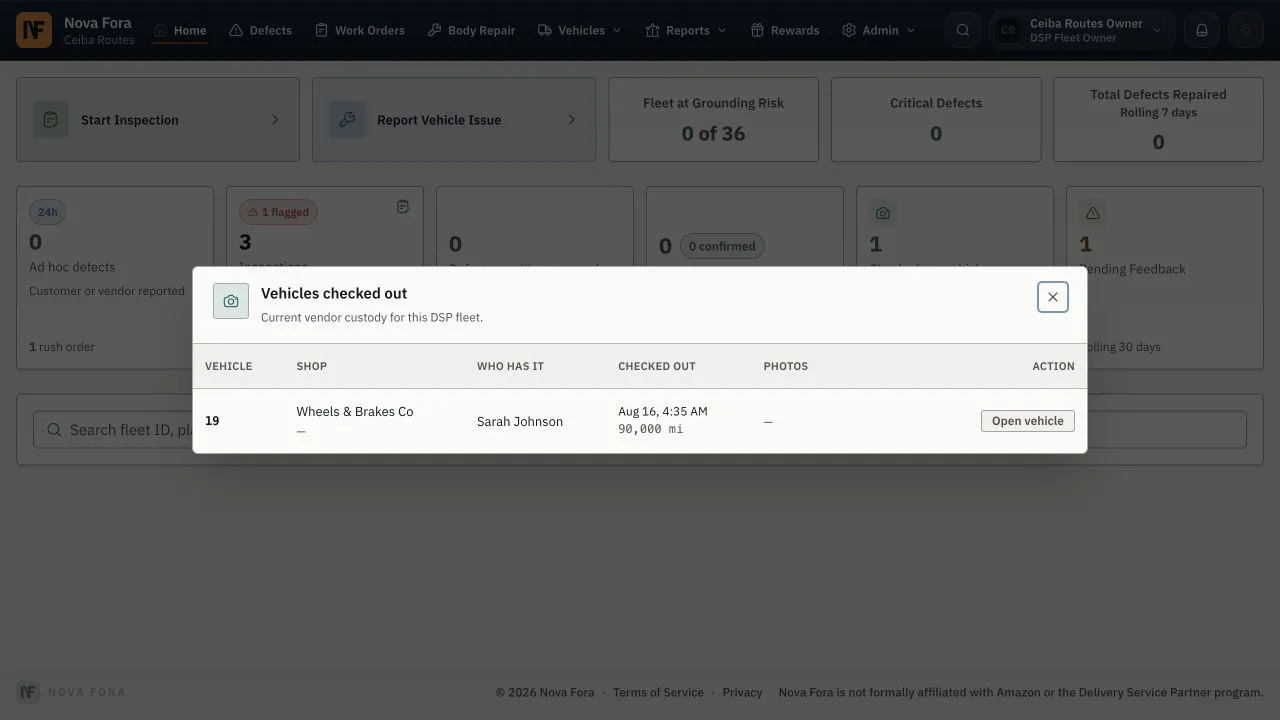
The vehicle page keeps the custody record with the vehicle history. Compare the return mileage and photos with the pickup record. Report a mismatch before the vehicle returns to service.
Read Notifications and Digests
Section titled “Read Notifications and Digests”Use the bell for current alerts. Open the related record, complete the task, and resolve the alert only when no work remains. DSP Owners and Managers can also receive morning, evening schedule, and post-inspection digests. Treat a digest as a summary; open Nova Fora for the latest status.
Use Reports
Section titled “Use Reports”DSP reports cover active defects, defect history, post-inspection results, inspection history, fleet availability, operational search, repair performance, and exports. Set the date and filters first. Open the supporting records before you make an operational decision.
Finish Your Day
Section titled “Finish Your Day”Record every unsafe vehicle, incomplete inspection, repair waiting for approval, vehicle at a shop, and promised pickup or return. Give each item a named owner and a due time.
Choose Repair Destinations
Section titled “Choose Repair Destinations”See DSP Vendor Settings for shop discovery, Station scope, and external-vendor activation and primary controls. Always review the destination before sending work.
Roger and Slack
Section titled “Roger and Slack”See Roger and Slack to learn how DSP drivers report problems, how owners connect Slack, and how the team follows up in Nova Fora.