Getting Started And Navigation
Welcome to Nova Fora. Start by signing in, then take a few minutes to find your vehicles and the work that needs your attention.
Before You Start
Section titled “Before You Start”You need:
- your own invitation, email address, and password;
- a device with a current browser;
- a reliable internet connection;
- access to your email or passkey device, if your organization requires it.
Do not use another person’s account.
If You Are Creating a New DSP Account
Section titled “If You Are Creating a New DSP Account”Use your invitation link if you have one. If Create a DSP account is offered, request the signup email and use its link to verify your address. A referral link or QR code also leads to email verification; opening it alone does not sign you in. Follow DSP onboarding after creating your account.
Sign In
Section titled “Sign In”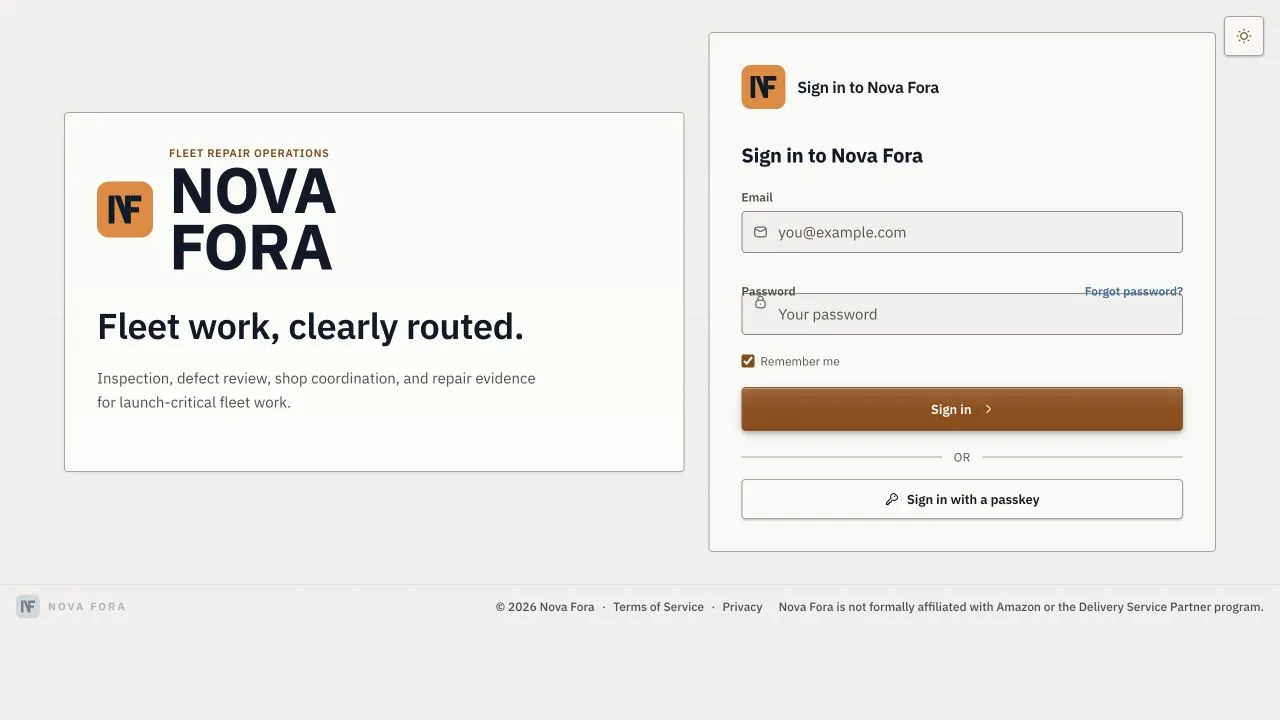
- Open the Nova Fora address from your organization.
- Enter your email address and password.
- Clear Remember me if you use a shared device.
- Complete the security check if the page asks for it.
- Read and accept any required agreement.
- Complete any setup steps shown on screen.
You can select Sign in with a passkey if your account has a passkey.
Once sign-in and any setup steps are complete, your workspace opens.
If You Cannot Sign In
Section titled “If You Cannot Sign In”- Check that you used the invited email address.
- Select Forgot password? if you need a new password.
- Ask an administrator for a new invitation if the link has expired.
- Select Try again if the page asks you to retry.
Do not share passwords, reset links, or passkeys.
Find Your Way Around
Section titled “Find Your Way Around”- Home shows your most important work.
- Search helps you find vehicles and work records.
- Notifications shows new work and updates.
- Vehicles lists vehicles that you can view or manage.
- Work Orders shows repair work.
- Defects shows reported vehicle problems.
- Body Repair shows collision and cosmetic repair work.
- Admin contains settings for users who have permission.
- User Settings contains your personal settings and sign-out option.
You’ll see the pages available for your role and the services your organization uses. DSP users open mechanical repair work from Home, Defects, or a vehicle rather than a separate Work Orders menu.
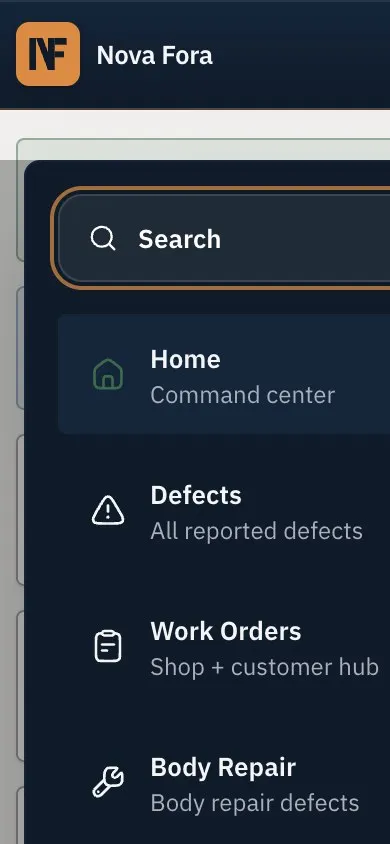
On a phone or narrow screen:
- Open the menu.
- Select the page you need.
- Close the menu after you move to the page.
Understand Page Messages
Section titled “Understand Page Messages”- A loading message means the page is still getting information.
- An empty message means no records match the current view.
- An error message means the page could not get information.
- A retry button lets you try the request again.
Clear search and filters before you decide that a record is missing.
Work Safely
Section titled “Work Safely”Before you save a change:
- Check the vehicle, customer, shop, and current status.
- Read the action label and confirmation message.
- Add clear notes when the page asks for them.
- Check the next person or team who must act.
Caution: Do not change a vehicle or repair record until you confirm that it is the correct record.
Your First Ten Minutes
Section titled “Your First Ten Minutes”- Confirm your organization and role.
- Open Home and review urgent items.
- Open one vehicle or work record to learn the labels your team uses.
- Check Notifications.
- Ask your supervisor which actions you may complete.
For help with a task, see Task Troubleshooting.